




ASUS Control Center Express
Real-time IT Monitoring and Management Software


Why ASUS Control Center Express?
ASUS Control Center Express is a real-time IT monitoring and management solution designed for businesses to boost productivity and strengthen security by preventing unauthorized access and data leaks. Its intuitive dashboard allows for easy, real-time management of hardware and software across your organization.
-
Less than
5 mins
Faster Installation
-
3 steps
Easier Migration
-
200
ASUS Motherboards
Compatible
video about ASUS Control Center Express
Easier Multi-device Management
The smart dashboard of ASUS Control Center Express with animation indicating different sections including multiple views of real-time information to control settings on multiple devices.
Smart Dashboards
The smart dashboard combines multiple views of real-time information to provide richer insights and visualize activity feeds and offers troubleshooting alerts and event logs to help you keep track of all devices in your network. You can quickly find and navigate devices of interest with smart search functionality, offering better visibility for faster deployment when controlling settings on multiple devices.
One-to-Many Remote Control
One-to-Many Remote Control
Control and manage multiple devices simultaneously from a single console. This feature enables IT teams to deploy configurations, execute commands, and troubleshoot endpoints in parallel, reducing repetitive tasks, accelerating response times, and ensuring consistent policy enforcement across the entire network.
The Floor Plan View feature of ASUS Control Center Express to visualize deployments of all devices for real-time monitoring. The video also shows the action of clicking a device on the floor plan to display a window that includes its detailed information.
Floor Plan View
Floor plan view is an innovative feature for visualizing deployments of all devices for real-time monitoring. Different from the list format in traditional IT management software, you can easily customize your view by importing a layout image of your environment — even a hand drawing — and add online/offline status shortcut icons to any asset with just a few clicks for real-time control.



Remote Control
ASUS Control Center Express offers real-time information of hardware, software, utilization and connections of all devices for identifying system failure to reduce outage risks and efficiently improve productivity. Detailed hardware information, such as system temperatures, fans, voltages and hardware status — including graphics cards — are available at a glance.
-

Temperature
-

Fan
-

Voltage
-

Graphics Card
Consistent IT management enables you to consolidate all of the assets across your network. ASUS Control Center Express allows you to get comprehensive software and hardware information with power, security, task scheduler and reporting functions on all devices. Access to the BIOS and OS reinstallation in hardware mode* when devices are not in an OS environment are available for remotely troubleshooting crashes or unexpected shutdowns.
-

Power On/Off
-

USB/Regedit Enabled/Disenabled
-

Software Blacklist
-

Task Scheduler
-

BIOS & OS Reinstallation (Optional)
* Requires a connection to a management LAN port supporting RTL 8117 LAN IC for BIOS and OS reinstallation in hardware mode.

The HTML 5 web-based software features a responsive web design (RWD), allowing you to manage and control your IT environments on different types of mobile devices. Just scan the QR code on the smart dashboard to quickly access the web version of ASUS Control Center Express on your mobile devices anytime and anywhere.
Enterprise-grade Security
Instantly enable or disable USB ports, registry access, and optical drives to prevent unauthorized changes, block risky media usage, safeguard system integrity, and reduce potential data leaks.

Proactively block unwanted or risky applications in real time, ensuring employees work in a compliant, secure, and efficient environment while reducing exposure to potential cyber threats.

Simplify disk encryption management with centralized BitLocker control, enhancing data protection, ensuring compliance, and securing sensitive information across all managed devices seamlessly.

Rapidly restore system functionality after crashes, errors, or failures, minimizing downtime, protecting data integrity, and ensuring your business operations continue without disruption.
Easy Setup & Migration

Installing ASUS Control Center Express is a very simple process that takes less than five minutes to complete. No additional software is required and there are no complicated instructions to follow. You'll be up and running and enjoying its full feature set in no time.

Quickly discover controllable remote devices through IP scanning, enabling fast and hassle-free setup, simplified device deployment, and streamlined IT operations for greater efficiency.

If you are already an ASUS Corporate Stable Model (CSM) program user with ASUS Control Center installed, the settings migrator is designed to transfer all your existing configurations and device data to ASUS Control Center Express in just a few steps. Learn more in the user manual.
200+ ASUS Motherboards Compatible
ASUS Control Center Express is not simply IT management software. Compatible with over 200+ ASUS Corporate Stable Model (CSM) motherboards, workstation motherboards, business motherboards backed by a strong partner network, it is the most interchangeable IT management software on the market, enabling solutions providers to perform easy deployments and updates across many vertical markets.
Learn MoreDownloads & Resources
Download ACCEExplore our tutorial video collection to help you get started and make the most of key features. Select your preferred language to watch step-by-step guides for installation, configuration, and advanced management tasks.
產品重點特色
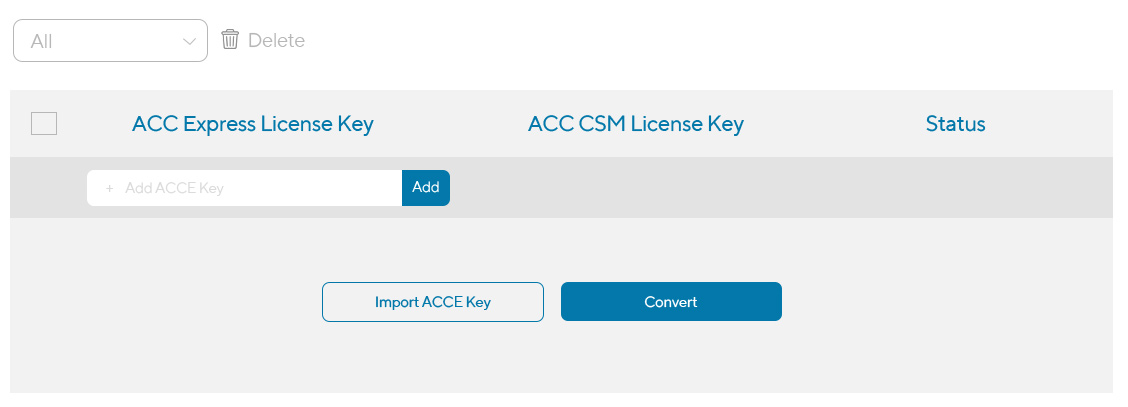
For users who prefer to continue using ASUS Control Center CSM, this converter provides you to transform your ASUS Control Center Express license key to ASUS Control Center CSM license key.
* Please note that the conversion process is not reversible.
Convert Your Key Now
FAQ
-
If I still want to continue using ASUS Control Center, how can I obtain a license key for it?ASUS Control Center Express cannot be installed on the main server If you purchased an ASUS product that already includes a bundled license key of ASUS Control Center Express but still prefer to use the existing ASUS Control Center, you can use our Key Converter to exchange your ACCE license key for an ACC license key. Please note that this conversion is one-way and cannot be reversed.
-
ASUS Control Center Express cannot be installed on the main serverASUS Control Center Express cannot be installed on the main server
- Make sure the server you wish to install ASUS Control Center Express on meets the ACCE main server requirements.
- Make sure the account on the main server you wish to install ASUS Control Center Express on has the required installation permissions.
- Please contact Customer Care if you require more details on installing ASUS Control Center Express
-
I cannot log into ASUS Control Center ExpressI cannot log into ASUS Control Center Express
- The login account and password are case sensitive (default account: administrator, default password: admin).
- If you already have ASUS Control Center Express installed and re-installing ASUS Control Center Express, check if you had changed the password previously, if so, then login using the password previously set.
- Please refer to 7.2.1 Account Settings for more details on Account Management settings.
-
Entering the license key on ASUS Control Center Express resulted in either an error message, or no increase in device license amountEntering the license key on ASUS Control Center Express resulted in either an error message, or no increase in device license amount
- Make sure that the license key entered matches the license key on the ASUS Control Center Express card bundled with your product's giftbox.
- If the license key you entered is an ACC CSM license key, make sure you entered the 18-digit license key in the CSM License Information block.
- Please refer to 7.1.4 License for more details on adding license keys.
-
The device I want to deploy an agent to does not appear in the scan results when automatically scanning for available client devicesThe device I want to deploy an agent to does not appear in the scan results when automatically scanning for available client devices
- Make sure the internet connection of the main server and client device is stable.
- Both the main server and client device need to be in the same network domain. If the client device and main server are in different network domains, please install the agent manually using the downloaded Agent Installation file or manually add the client device in ASUS Control Center Express. Please refer to 3.1 Deploying agents for more details on the deploying ASUS Control Center Express agents.
-
After the deployment process is finished, the deploy results show that the deployment was unsuccessfulAfter the deployment process is finished, the deploy results show that the deployment was unsuccessful
- If the result is "You need to import additional licenses", please make sure the product's license key is entered, and check that there are enough license keys available. The amount of license keys is displayed in the License Information and CSM License Information blocks. Please refer to 7.1.4 License for more details.
- If the result is "Connect remote fail [SYSTEM ERROR:86, The specified network password is not correct.]", please make sure the administrator account and password was entered correctly when deploying the agent. Please refer to 3.1 Deploying agents for more details on the deploying ASUS Control Center Express agents.
- If the result is "Connect remote fail [SYSTEM ERROR5, Access is denied.]", please make sure that Remote Service Management under the client device's system firewall setting has been checked. Please refer to 3.1 Deploying agents for more details on the deploying ASUS Control Center Express agents.
- Please check if ASUS Control Center Express has been installed on the client device. ASUS Control Center should only be installed on the main server, if ASUS Control Center Express has been installed on the client device, please uninstall it on the client device.
-
Some processes and services cannot be stopped, and some applications cannot be uninstalled in Software InformationSome processes and services cannot be stopped, and some applications cannot be uninstalled in Software Information
- To maintain system stability, some operating system applications, processes, and services cannot be uninstalled or stopped through ASUS Control Center Express.
- The application cannot be uninstalled through ASUS Control Center Express if the application is in Silent Mode (i.e. the user needs to confirm manually to complete the uninstallation process) or if a .msi uninstall file was not provided.
- Please refer to 5.10.3 Software Information for more details.
-
What Management Control functions does ASUS Control Center Express provideWhat Management Control functions does ASUS Control Center Express provide
- Client devices that have Remote Management Controller support (e.g. RTL8117), can control and view device information using Management Control functions even when the device cannot power on or boot into OS, or if there is no OS installed.
- Please refer to 5. Management Functions for more details.
-
What is the difference between Normal Mode and Recovery Mode when using the RTL8117 BIOS Flash function of ASUS Control Center ExpressWhat is the difference between Normal Mode and Recovery Mode when using the RTL8117 BIOS Flash function of ASUS Control Center Express
- Normal Mode allows you to flash the BIOS even when the client device is powered off.
- Recovery Mode can be used to repair the BIOS in scenarios where the client device's BIOS is corrupt or if attacked by malware. Please note that using Recovery Mode will clear all motherboard BIOS settings and data.
- Please refer to 5.8 Smart BIOS for more details.
-
The client device supports RTL8117, but I cannot use the USB redirection and KVM functions on ASUS Control Center ExpressThe client device supports RTL8117, but I cannot use the USB redirection and KVM functions on ASUS Control Center Express
- The RTL8117 functions vary between firmware versions, you can view the client's RTL8117 firmware version under Management Control, or in the RTL8117 option in the client device's BIOS. The RTL8117 firmware can be updated by downloading the latest version from the product site.
- Download the latest RTL8117 firmware from the product site, then update the firmware using ASUS Control Center Express; or download the RTL8117 firmware update tool from the product site, then update the firmware on the client device.
- Please refer to 5.9 Firmware Update for more information on updating the RTL8117 firmware using ASUS Control Center Express.
-
What settings do I need to configure on the main server and client device to use the KVM function of RTL8117What settings do I need to configure on the main server and client device to use the KVM function of RTL8117
- Main server: Enable the KVM Enable/Disable KVM option under the Management Functions > Control before connecting to the client device using RTL8117 KVM remote desktop for the first time. Please refer to 4.8.2 Out-of-band Management Remote Desktop for more details.
- Client device: Restart the client device and enter BIOS, then navigate to Advanced > RTL8117 setting, and select a KVM Display Mode. Please refer to 4.8.2 Out-of-band Management Remote Desktop for more details.
- To maintain the device's stability, when KVM is enabled on the client device, you will not be able to update the RTL8117 firmware. If you wish to update the RTL8117 firmware, please ensure that KVM is disabled before updating the RTL8117 firmware.