製品
ELMGR7093DX4, ELMGR7093DX6, ELMGR709HXX4, ELMGR709HXX6, GR70, MINIPC PB50, MINIPC PB60V, MINIPC PB61V, MINIPC PB62, MINIPC PN52, MINIPC PN80, PA90, PB40, PB40-B, PB50, PB50-B, PB60, PB60-B, PB60G, PB60S, PB60S-B, PB60V, PB61S, PB61V, PB61V-B, PB61V-H, PB62, PB62-B, PB63, PB63-B, PB63V, PB64, PB64-B, PL63, PL63-A, PL63-B, PL64, PL64-B, PL64-D1, PL64-D1-B, PN30, PN40, PN40Q, PN41, PN41-A, PN41-B, PN41-S1, PN41-S1-B, PN41-S1-M, PN41-S1-MI, PN42, PN42-B, PN42-E1, PN42-E1-B, PN42-M, PN42-S, PN42-S-B, PN43, PN43-B, PN43-S, PN43-S-B, PN50, PN50-B, PN50-E1, PN50-E1-B, PN50-F, PN50F2, PN50-S1, PN51, PN51-B, PN51-E1, PN51E1-B, PN51-S1, PN51-S1-B, PN52, PN52-B, PN53, PN53-B, PN53-S1, PN53-S1-B, PN54, PN54-B, PN54-S1, PN54-S1-B, PN60, PN60-B, PN60-R, PN61, PN61-B, PN61S, PN61T, PN62, PN62-B, PN62S, PN63, PN63-B, PN63-S1, PN63-S1-B, PN64, PN64-B, PN64-E1, PN64-E1-B, PN64-M, PN65, PN65-B, PN80, PN865
保証状況の確認方法
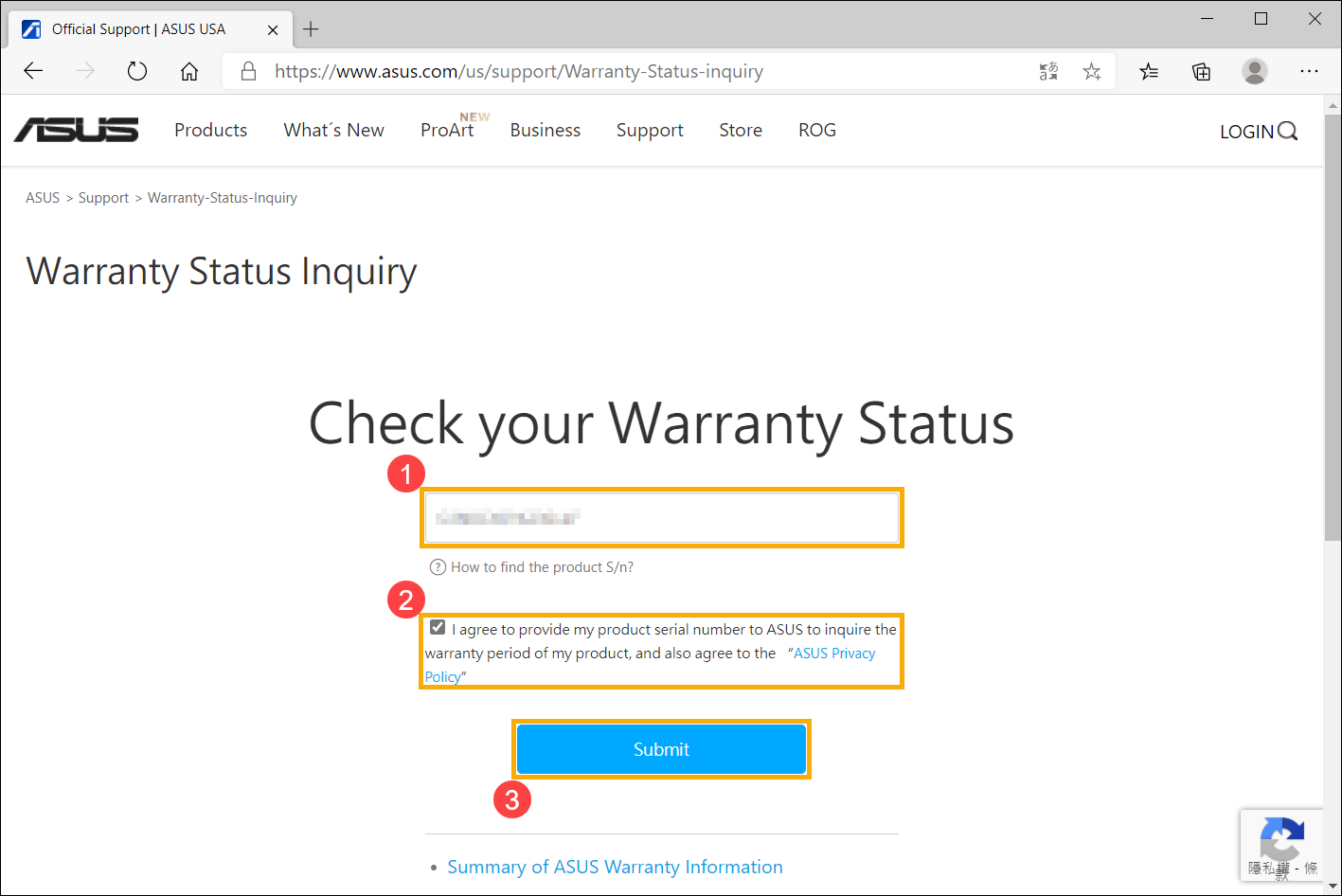
- Go to the Warranty Status Inquiry page of the ASUS official website.
- Enter your serial number① and check the box to ASUS Privacy Policy②, then click [Submit]③. Here you can learn more about How to find the product serial number.
- The search result will display your warranty expiration date of the product.
※ Note: The warranty status displayed here is only for reference. If user can’t provide the effective purchase invoice of the product, product warranty will start from the date of device delivery according to the product S/N. Here you can learn more about How to upload the purchase incoive.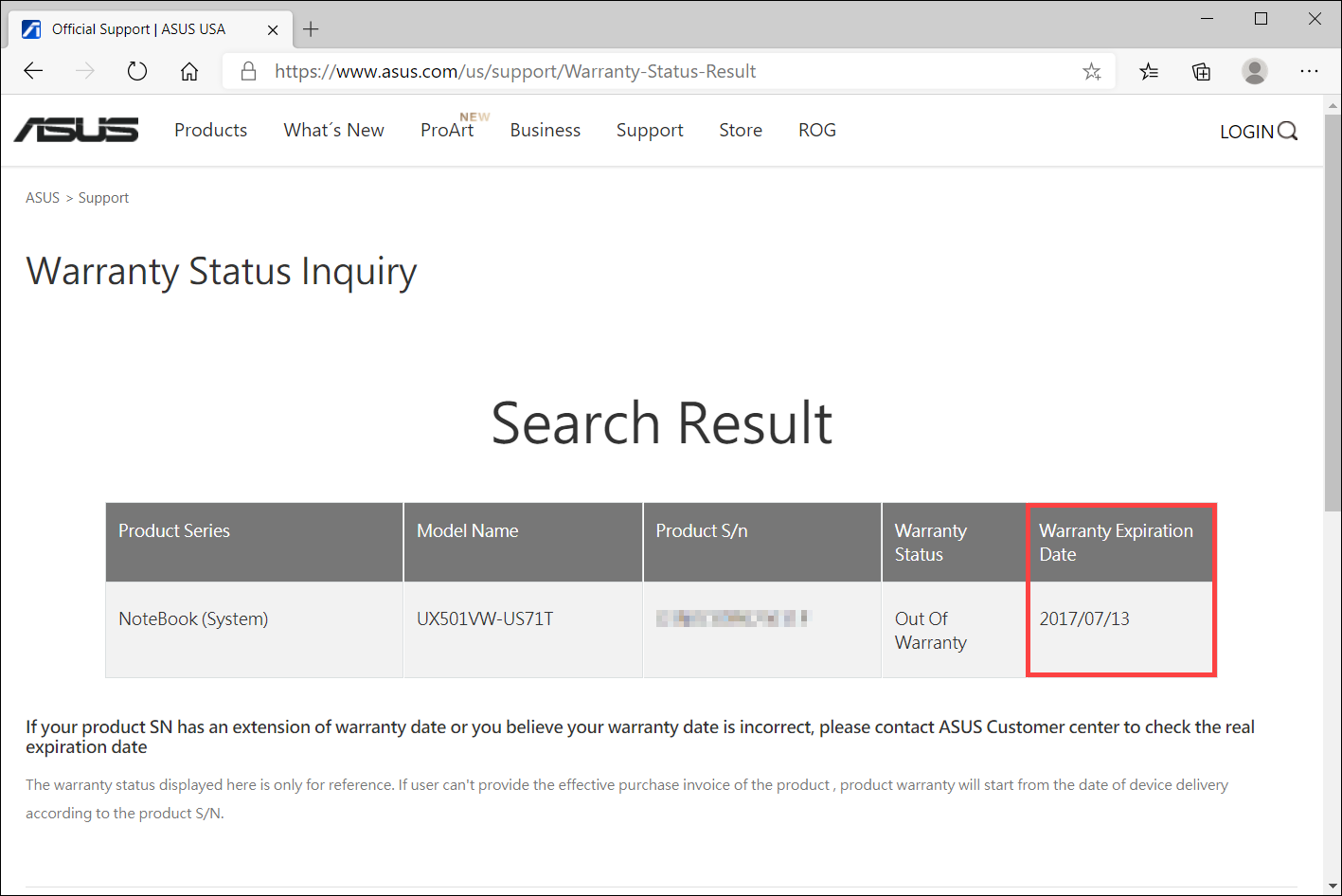
How to upload the purchase invoice
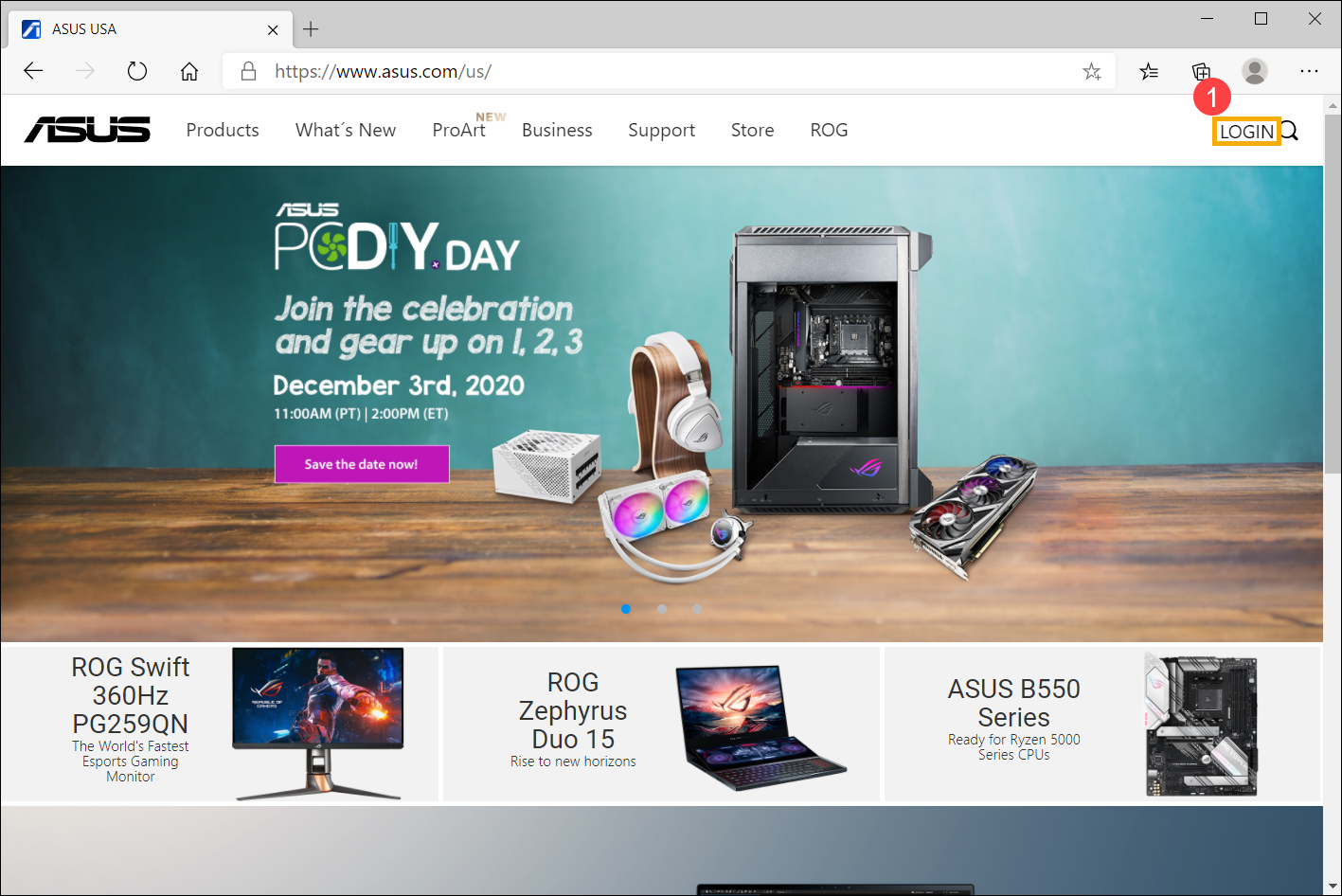
- Go to the ASUS official website, then click [LOGIN] where locates at the upper-right corner①.
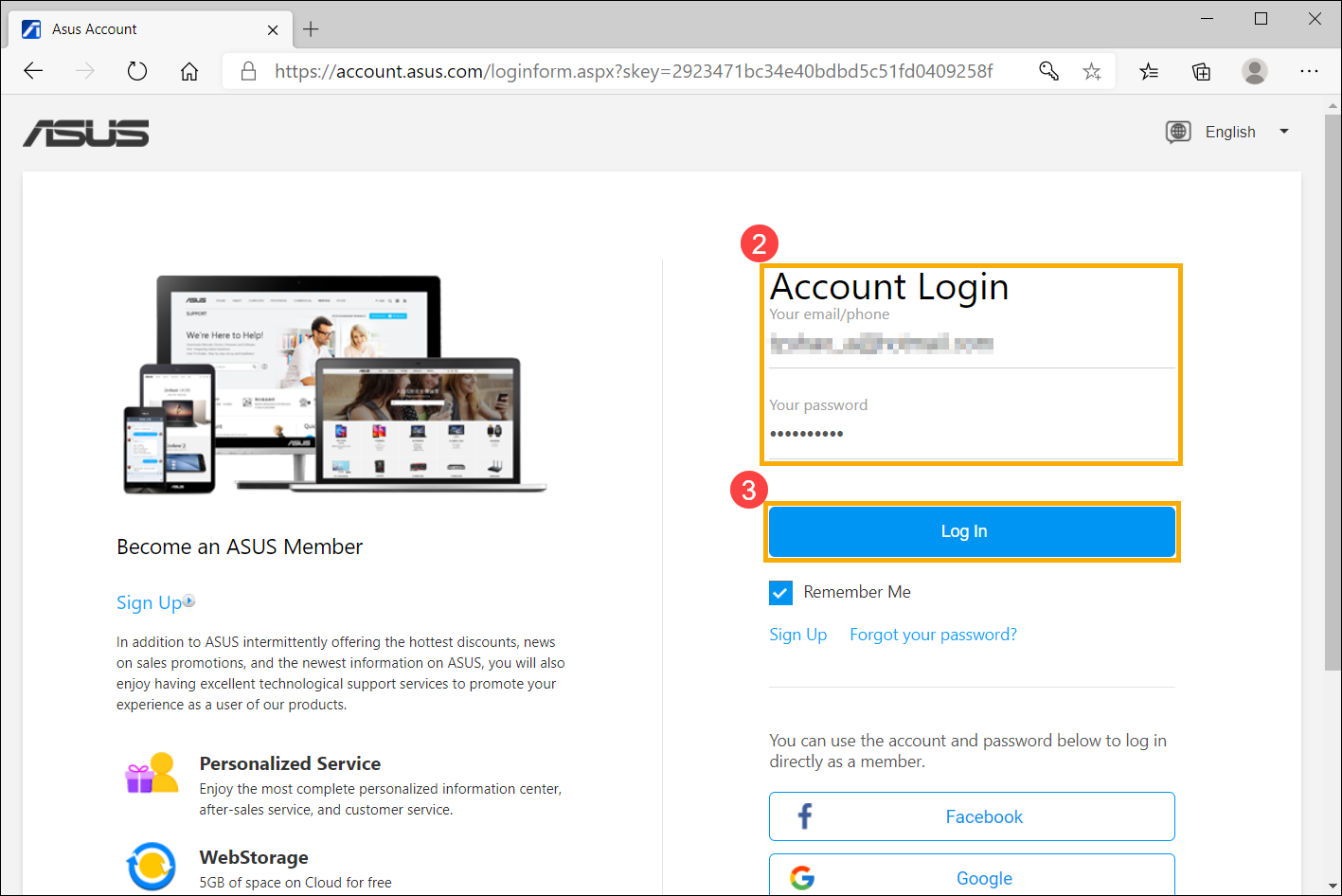
- Enter your ASUS account and password②, then click [Log In]③. If you didn’t have the ASUS account yet, here you can learn more about How to register the ASUS account.
- After you log in your ASUS account, click the account
 icon where locates at the upper-right corner④, then select [ASUS Account]⑤.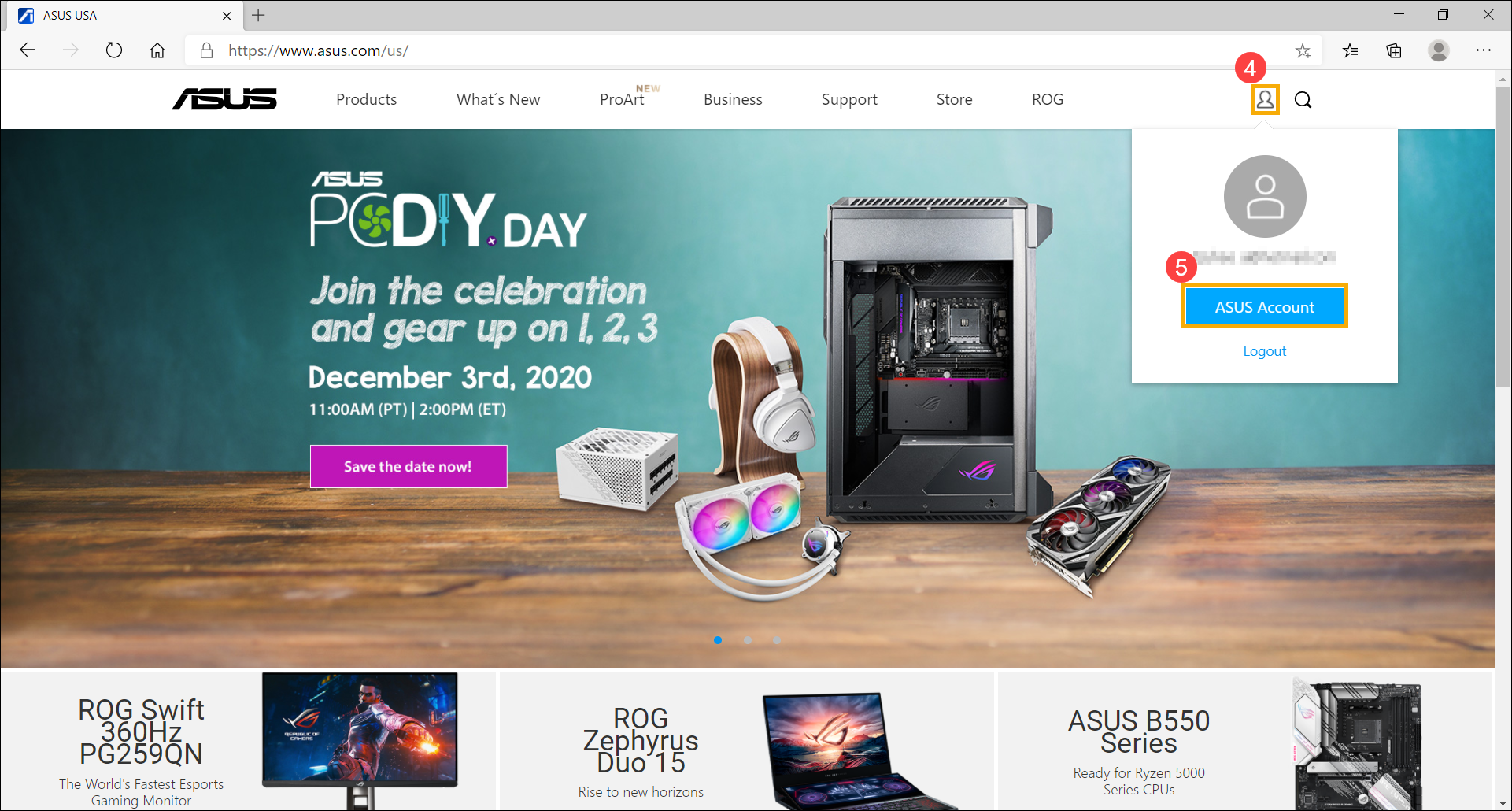
- After entering the ASUS Account page, select [My Product]⑥, find the registered products which you want to update the purchase invoice, then click the edit button
 on the right side⑦. If you didn’t register your ASUS product yet, here you can learn more about How to register ASUS product.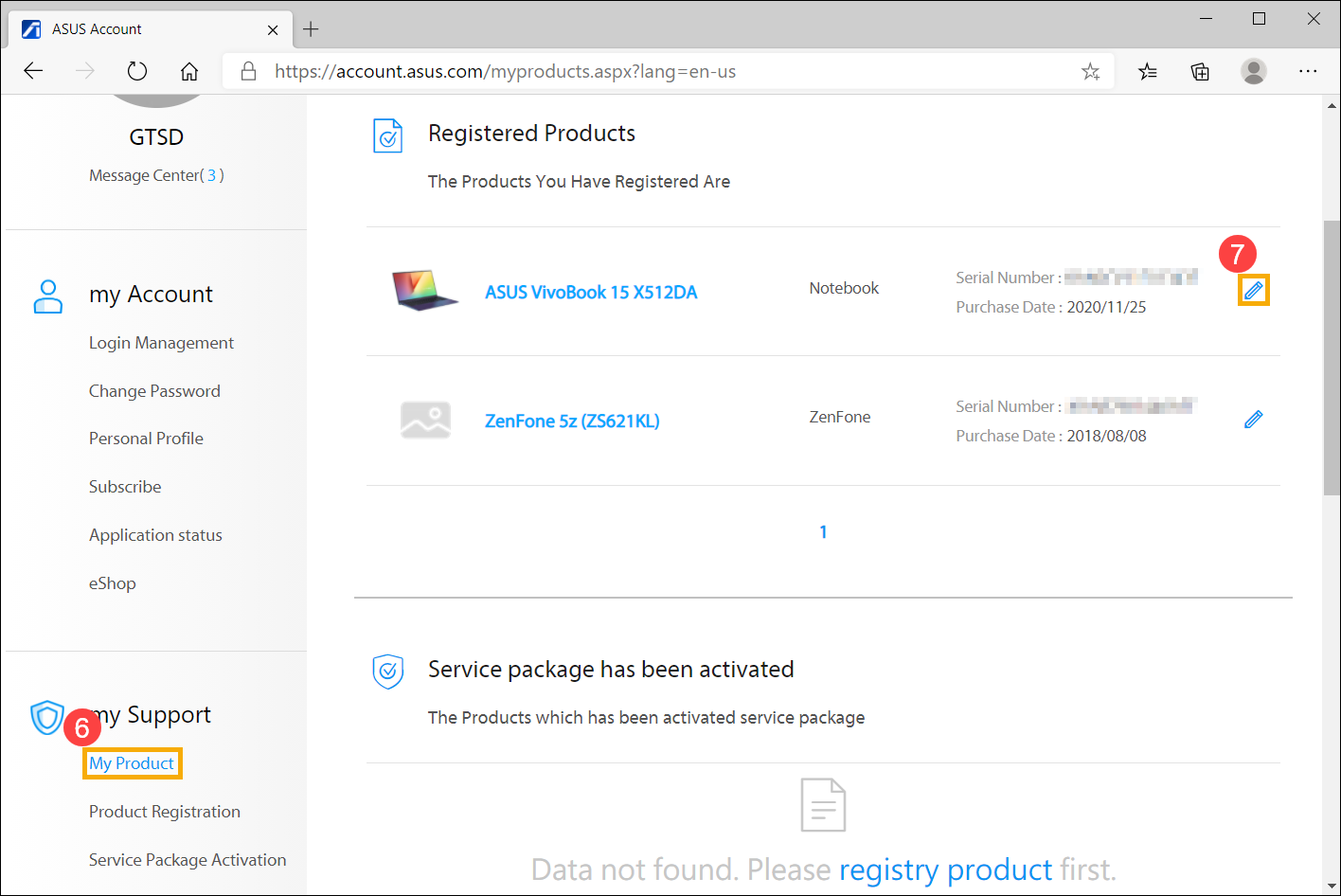
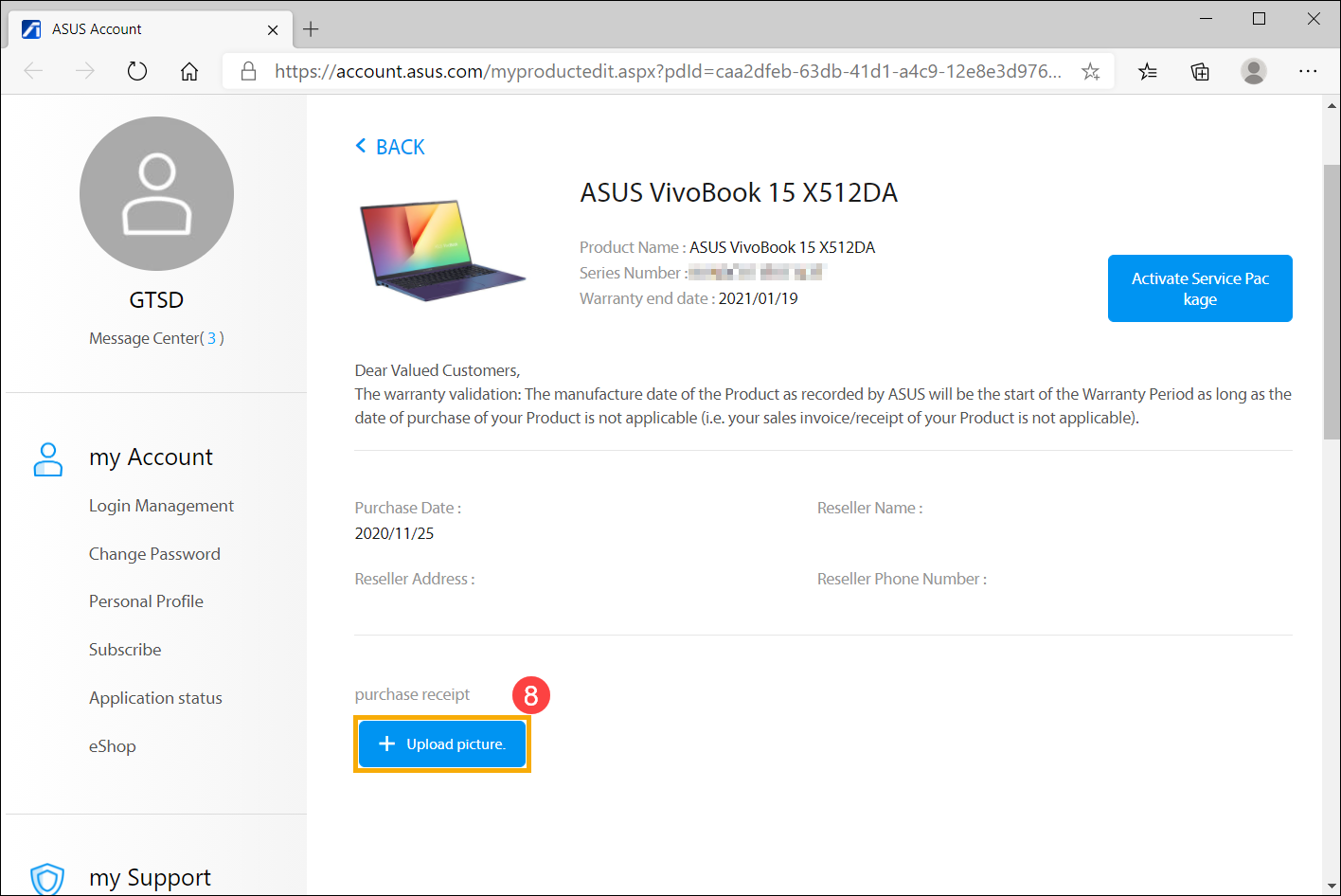
- Click [Upload picture]⑧.
- Click [Select file] and choose your invoice or receipt⑨, then click [Upload picture] to upload the purchase invoice file⑩.
※ Note: The file type supports jpg file only, and the file size needs less than 3MB.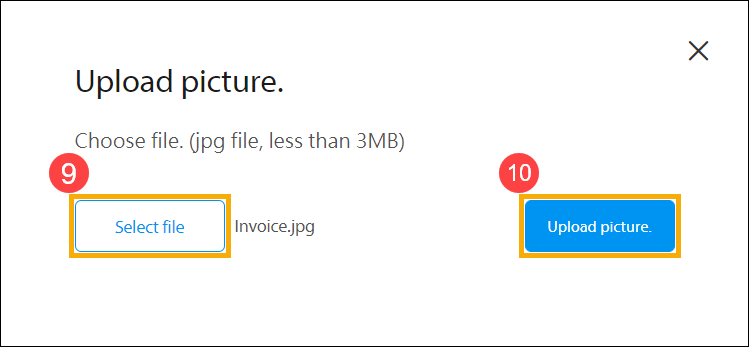
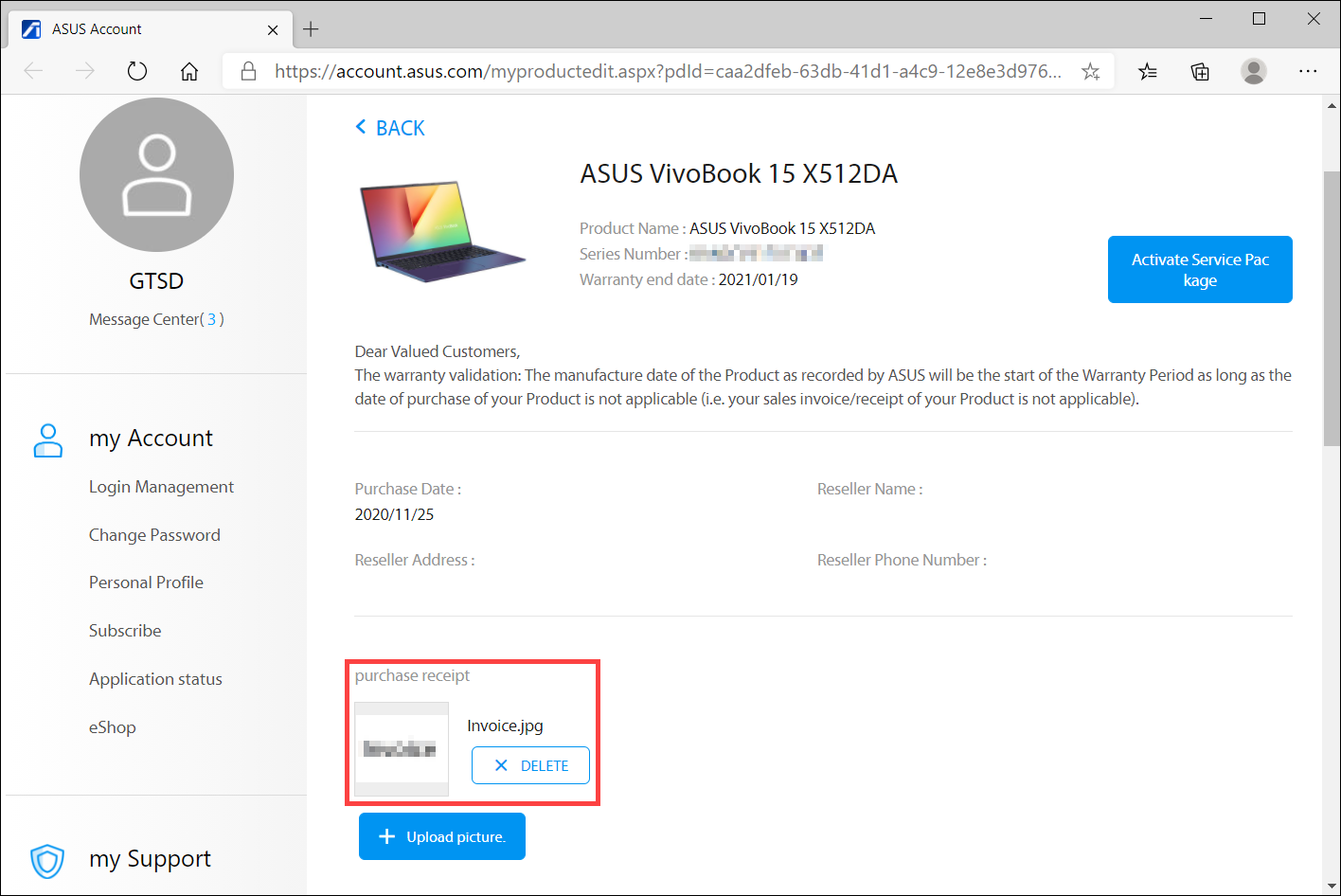
- After uploading is completed, your uploaded file will display on the purchase receipt section of the product page.
Download MyASUS now to experience perfect service . CLICK HERE!
