Related Topics
[Windows 11/10] Modern Standby Introduction
Why do some applications such as music playback continue to operate even after setting a device running Windows 11/10 operating system to ‘Sleep’ mode? When you initiate the sleep operation via [Start Menu] > [Power Button] > [Sleep], music playback does not interrupt, and you can still receive various alerts and notifications, with the ability to swiftly awaken the device with a simple touch to resume work. This is because your device supports the functionality of ‘Modern Standby’.
Modern Standby Functionality Introduction
In certain machines equipped with the Windows 11/10 operating system, the Modern Standby feature enables the computer to remain connected to the network while in standby mode, similar to a smartphone. At this time, the computer is in the ‘S0 Low Power Idle’ sleep state. In this mode, besides continuous music playback and receiving alerts and notifications, most applications will be paused. A gentle touch on any key is all that is required to swiftly awaken the computer and prepare it for work.
How to Confirm If Your Device Supports Modern Standby
The Modern Standby feature not only requires support from Windows 10 or later versions of the operating system but also corresponding hardware support. You can check if your device supports Modern Standby by following these steps:
- Open the ‘Run’ window using the shortcut WIN
 + R, then type [cmd]① and click [OK]②.
- In the command prompt window, type [powercfg /a] and press Enter③. If the result shows [Standby (S0 Low Power Idle) Network Connected] or [Standby (S0 Low Power Idle) Network Disconnected]④, it means your device supports the Modern Standby feature.

How to Enter Modern Standby
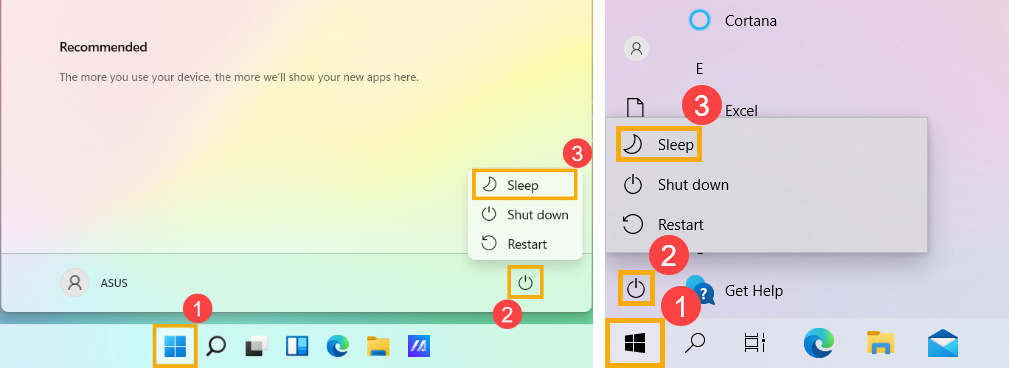
To enter Modern Standby mode, simply click on the [Start] icon on the taskbar①, then click on the [Power] icon②, and choose the [Sleep] option③. (The left image below shows the Windows 11 operation screen, while the right image shows the Windows 10 operation screen.)
It is worth noting that if your device remains inactive for a period of time after entering sleep mode, the system will automatically enter a deeper sleep state, known as ‘Hibernate’ mode.
Modern Standby vs S3 (Sleep)
In Windows 10, there are two power models for PCs: S3 and Modern Standby. The S3 power model is an older standard and is not capable of the instant on that consumers expect from modern devices. Modern Standby is capable of leveraging all the capabilities of a modern chipset and can be integrated across the breadth of tablets and PCs today. The first iteration of Modern Standby was Connected Standby, which first shipped in Windows 8 and Windows 8.1. Modern Standby expands upon the Windows 8.x Connected Standby concept, allowing for flexibility in component selection and the ability for the OS to manage network connectivity in standby.
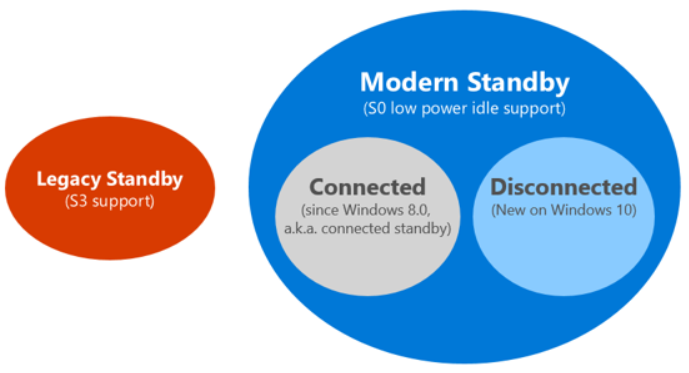
The above figure illustrates the relationships between the models and how Modern Standby systems can either stay connected to or disconnect from the network while in standby.
On any Modern Standby system, the system remains in S0 while in standby, allowing the following scenarios to work:
- Background activity
- Faster resume from a low power state
On systems that can stay connected while in standby, wakes based on specific network patterns may also be set by the operating system to enable apps to receive the latest content such as incoming email, VoIP calls, or news articles.
Technical differences
When in the lowest power state, systems may look very similar to systems in the S3 state—processors are powered off and memory is in self-refresh. The difference is in the path of how it enters and exits low power state. For S3 systems, the system is either active or in S3. For Modern Standby, the transition from the active to the low power state is a series of steps to lower power consumption. Components are powered down when they are not in use. So, the transition into and out of a lower power state is much quicker on a Modern Standby system than on an S3 system. This design also helps with the speed of entry and exit from Standby as it doesn’t require firmware interactions.
Q&A
Question 1: Can I still switch to S3 standby mode on a ASUS notebook which pre-installed with Windows 10/Windows 11?
Answer 1: All newer ASUS laptops now use the Microsoft mandated Modern Standby as default. The old legacy Standby S3 is no longer supported.
Question 2: If an ASUS motherboard supports Modern Standby, does it also support the traditional sleep mode (Legacy S3)?
Answer 2: Yes. If the motherboard supports Modern Standby, the BIOS will typically provide both Modern Standby and Legacy S3 so users can choose and switch between them. A common settings path is as follows (menu names may vary slightly by motherboard/BIOS version): Advanced → APM Configuration → Sleep Mode → Modern Standby or Legacy S3.
Question 3: If an ASUS motherboard’s BIOS is set to Modern Standby vs. Legacy S3, will Windows behave differently?
Answer 3: Yes. Below are the system-behavior differences that may appear in Windows 10 and Windows 11 under different Sleep Mode settings.
Differences that may occur in both Windows 10 and Windows 11:
- Different default action for the power button
- Modern Standby: In Power & sleep settings, the default action for pressing the power button is Sleep.
- Legacy S3: The default action is Shut down.
- Different power mode (power plan) options
- Modern Standby: Only Balanced is available; High performance and Power saver are not.
- Legacy S3: Balanced, High performance, and Power saver are available.
- Different conditions for displaying “Sleep” in the Start menu
- Modern Standby: Even without a dedicated VGA driver installed, as long as Device Manager shows Microsoft Basic Display Adapter, you can still see Sleep under right-click Start → Shut down or sign out.
- Legacy S3: A full graphics driver must be installed before Sleep will appear.
Differences that may occur only in Windows 11:
In Windows 11, Lock screen functionality may be affected by the BIOS Sleep Mode setting at the time the OS is installed.
- If Windows 11 is installed with Sleep Mode set to Modern Standby
- The Lock option in system settings may be unavailable.
- Windows key + L may not lock the screen.
- Even if you later switch the BIOS Sleep Mode to Legacy S3, the lock function may not be restored.
- If Windows 11 is installed with Sleep Mode set to Legacy S3
- The Lock option works normally.
- Windows key + L locks the screen normally.
- Even if you later switch the BIOS Sleep Mode to Modern Standby, the lock function remains available.
Note: If you need the Windows 11 Lock screen feature, it is recommended to set Sleep Mode to Legacy S3 in the BIOS before installing Windows 11.
For more typical questions related to Modern Standby, please refer to Microsoft’s Modern Standby FAQ.
The above content is sourced from Microsoft. For a more detailed introduction to the Modern Standby feature, please refer to Microsoft's documentation.