Product
ELMGR7093DX4, ELMGR7093DX6, ELMGR709HXX4, ELMGR709HXX6, GR70, MINIPC PB50, MINIPC PB60V, MINIPC PB61V, MINIPC PB62, MINIPC PN52, MINIPC PN80, PA90, PB40, PB40-B, PB50, PB50-B, PB60, PB60-B, PB60G, PB60S, PB60S-B, PB60V, PB61S, PB61V, PB61V-B, PB61V-H, PB62, PB62-B, PB63, PB63-B, PB63V, PB64, PB64-B, PL63, PL63-A, PL63-B, PL64, PL64-B, PL64-D1, PL64-D1-B, PN30, PN40, PN40Q, PN41, PN41-A, PN41-B, PN41-S1, PN41-S1-B, PN41-S1-M, PN41-S1-MI, PN42, PN42-B, PN42-E1, PN42-E1-B, PN42-M, PN42-S, PN42-S-B, PN43, PN43-B, PN43-S, PN43-S-B, PN50, PN50-B, PN50-E1, PN50-E1-B, PN50-F, PN50F2, PN50-S1, PN51, PN51-B, PN51-E1, PN51E1-B, PN51-S1, PN51-S1-B, PN52, PN52-B, PN53, PN53-B, PN53-S1, PN53-S1-B, PN54, PN54-B, PN54-S1, PN54-S1-B, PN60, PN60-B, PN60-R, PN61, PN61-B, PN61S, PN61T, PN62, PN62-B, PN62S, PN63, PN63-B, PN63-S1, PN63-S1-B, PN64, PN64-B, PN64-E1, PN64-E1-B, PN64-M, PN65, PN65-B, PN80, PN865
[Windows 11/10] Troubleshoot app
Please go to the corresponding instruction based on the current Windows operating system on your computer:
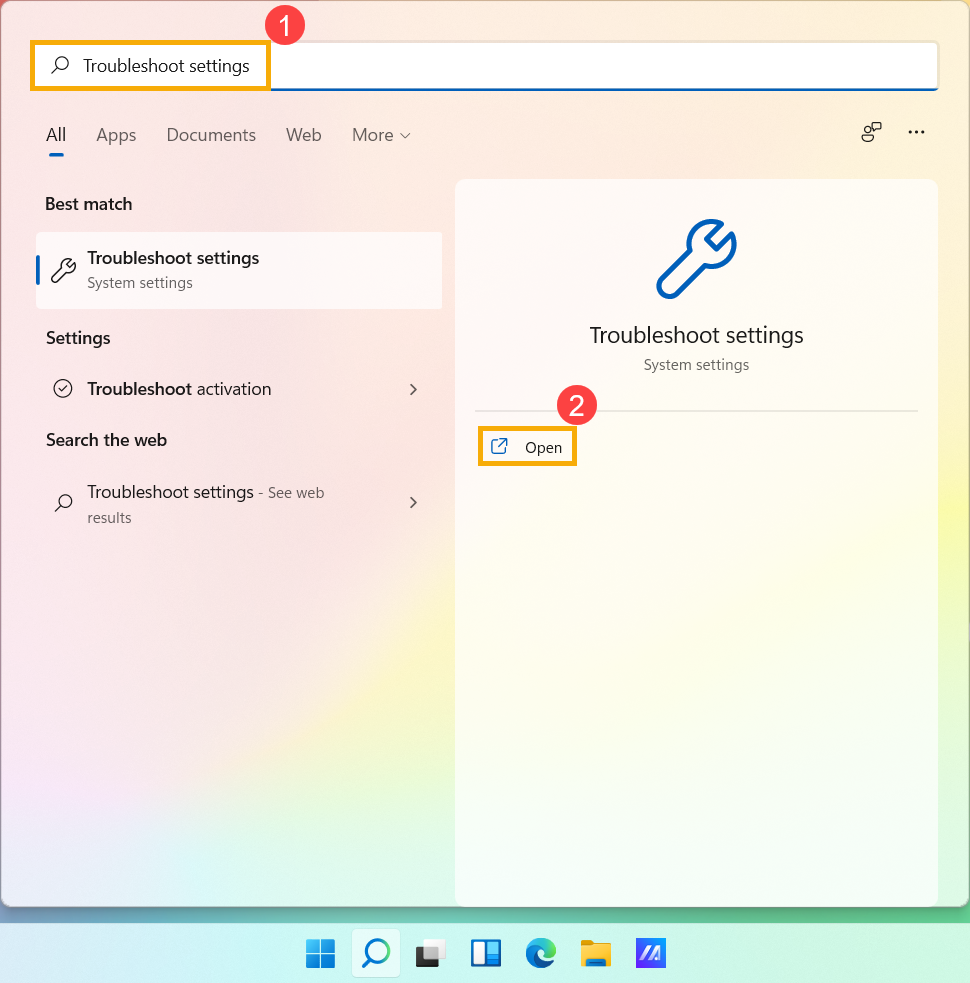
- Type and search [Troubleshoot settings] in the Windows search bar①, then click [Open]②.
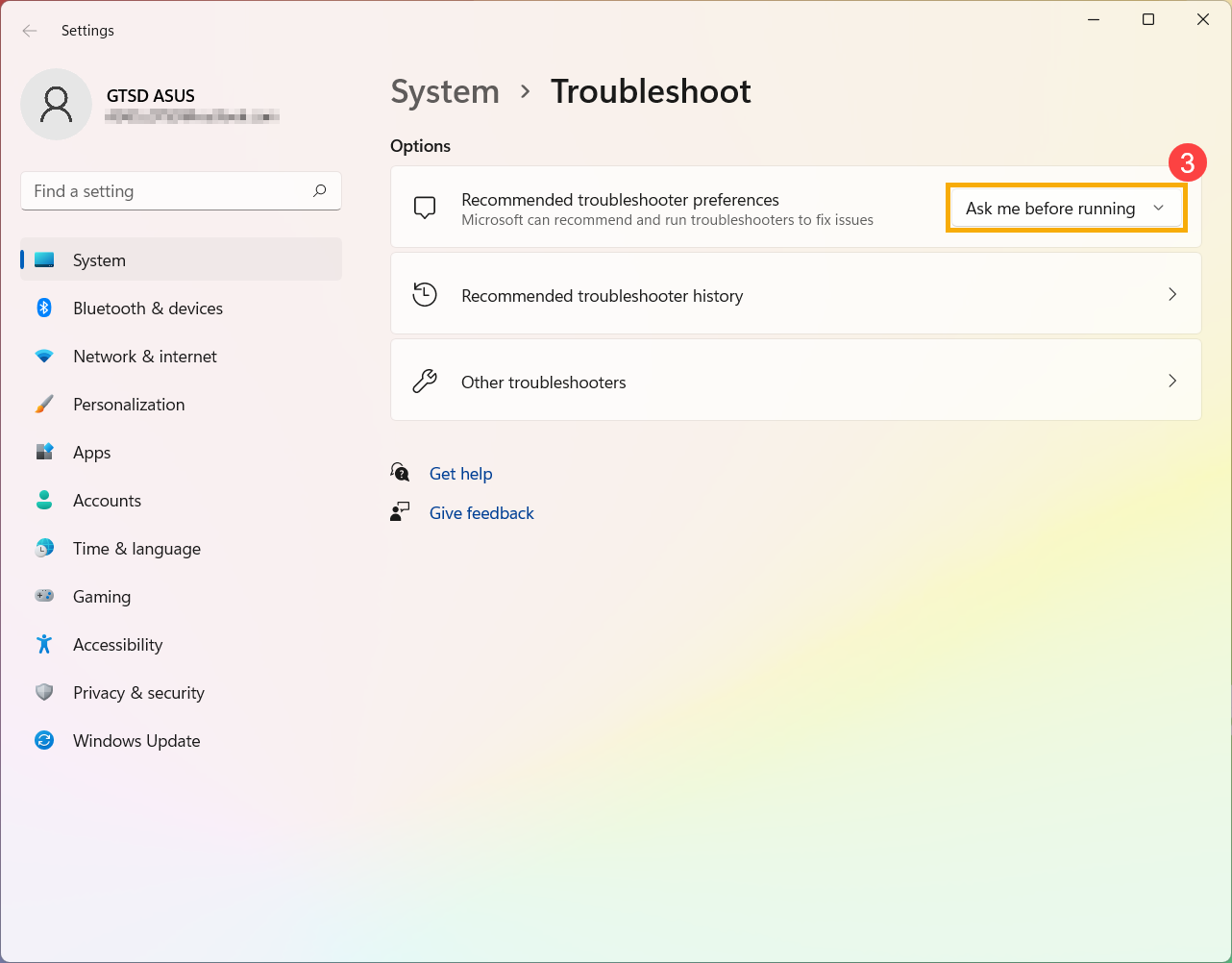
- In Recommended troubleshooter preferences, you can choose how recommended troubleshooting is run on your computer when receiving it③. (Run automatically, don’t notify me / Run automatically, then notify me / Ask me before running / Don’t run any) Recommended troubleshooter will only be enabled when your computer connects to the internet.
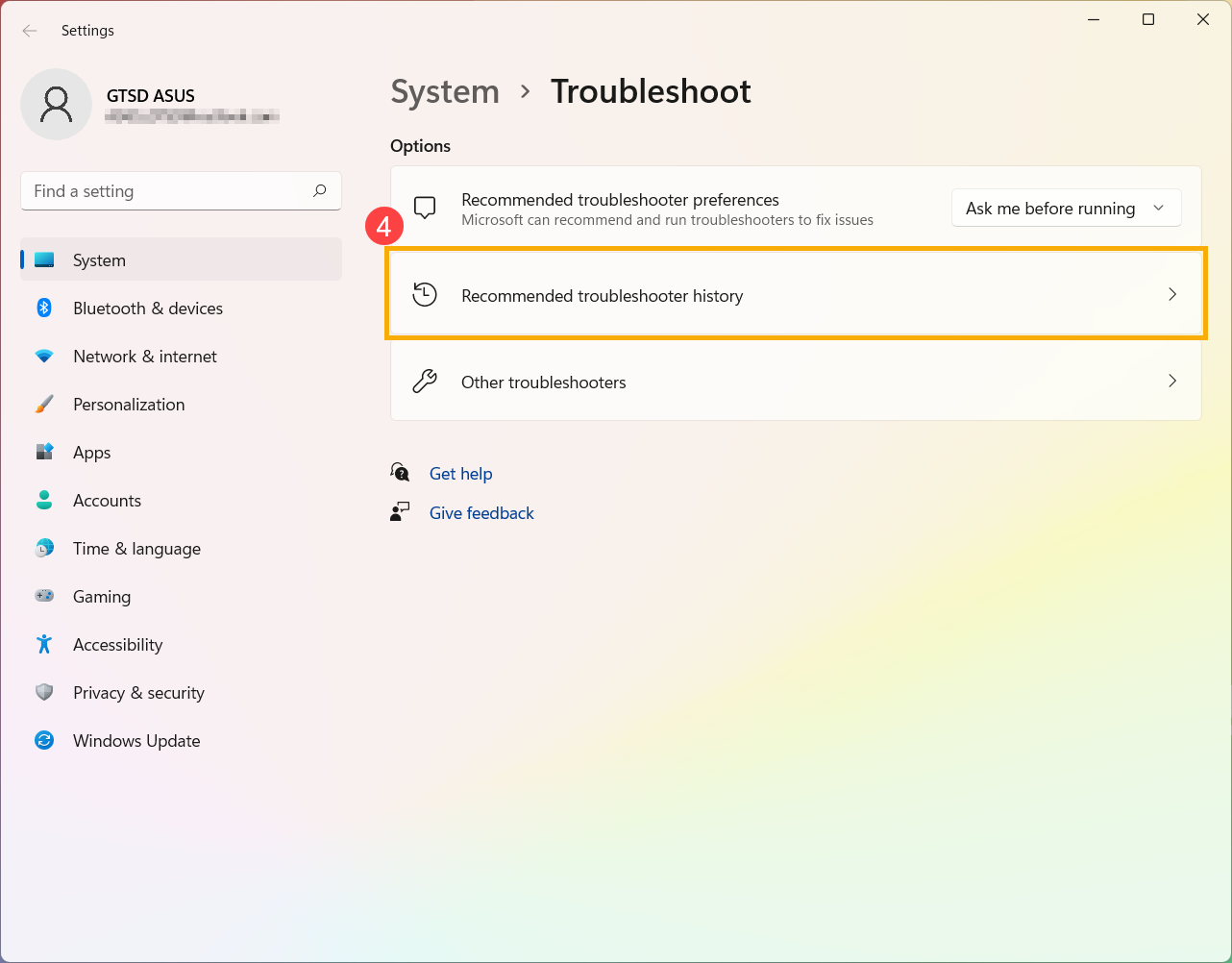
- Windows keeps track of the critical and recommended troubleshooting run on your device so you know what problem they have fixed. You can select [Recommended troubleshooter history] to check④.
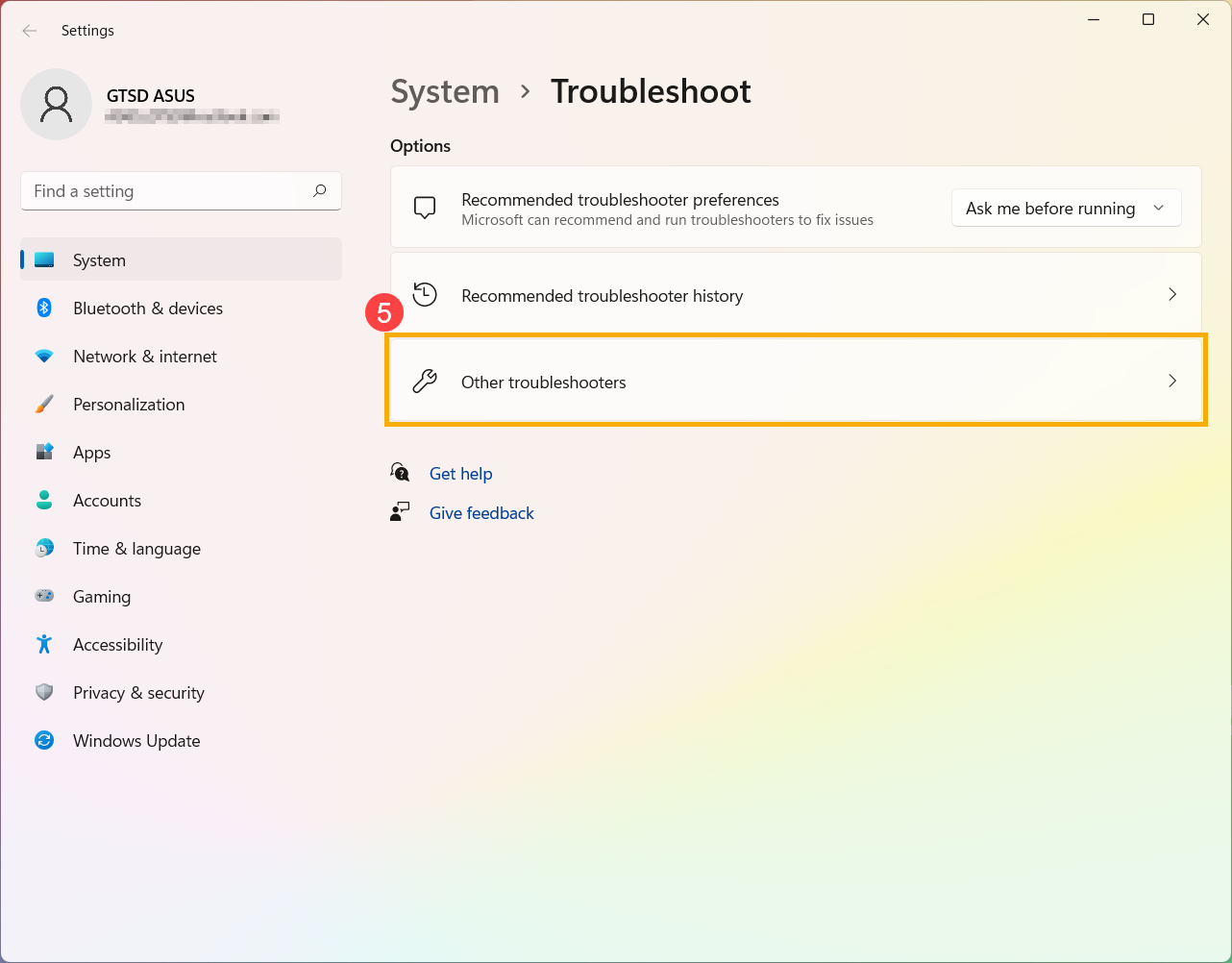
- If there are some items that cannot work normally on your device, you also can manually run the troubleshooter to try to find and fix the problem. Please select [Other troubleshooters]⑤.
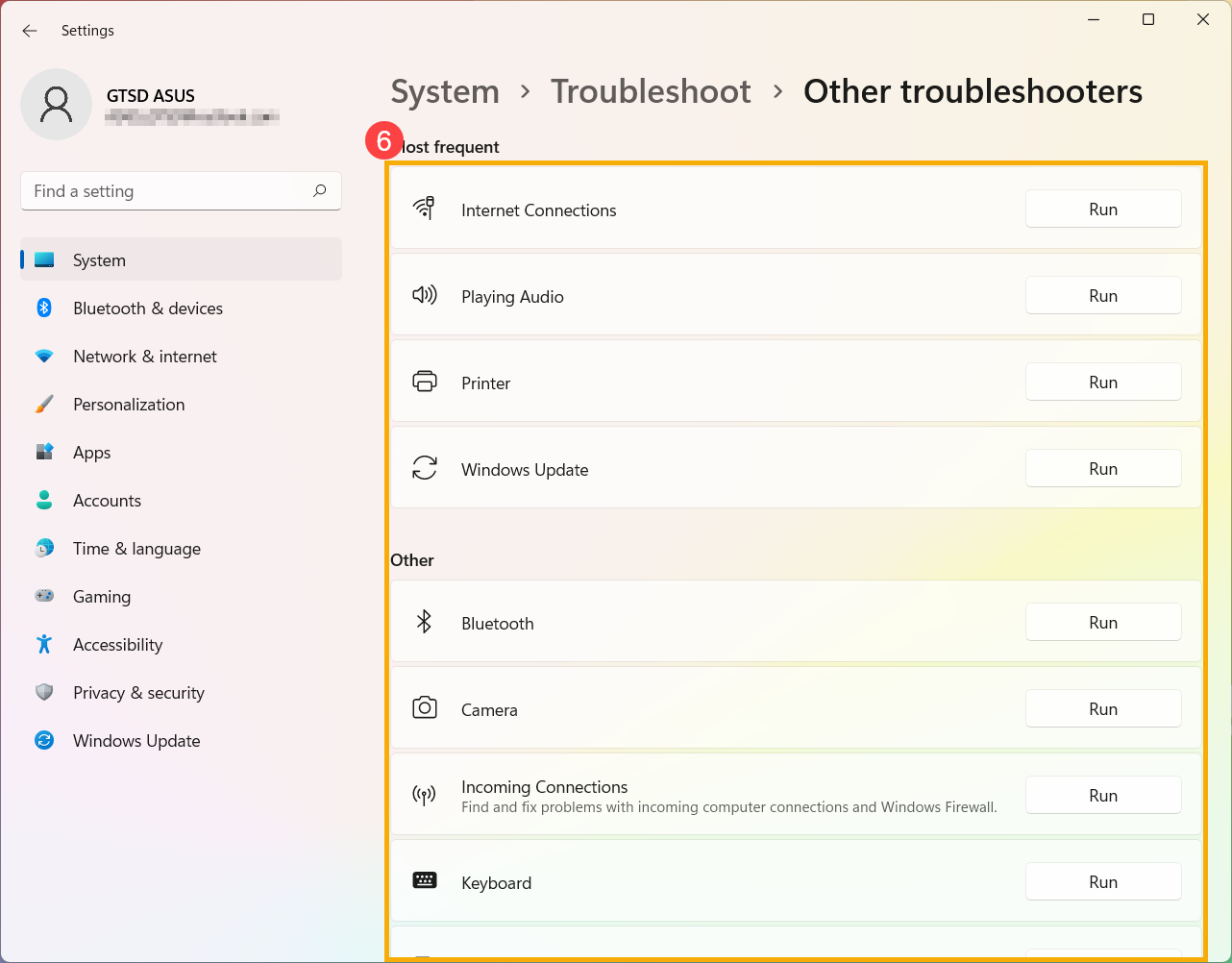
- Select the troubleshooter based on the problem you experience, and then follow the diagnostic suggestions Microsoft provides to fix it⑥.
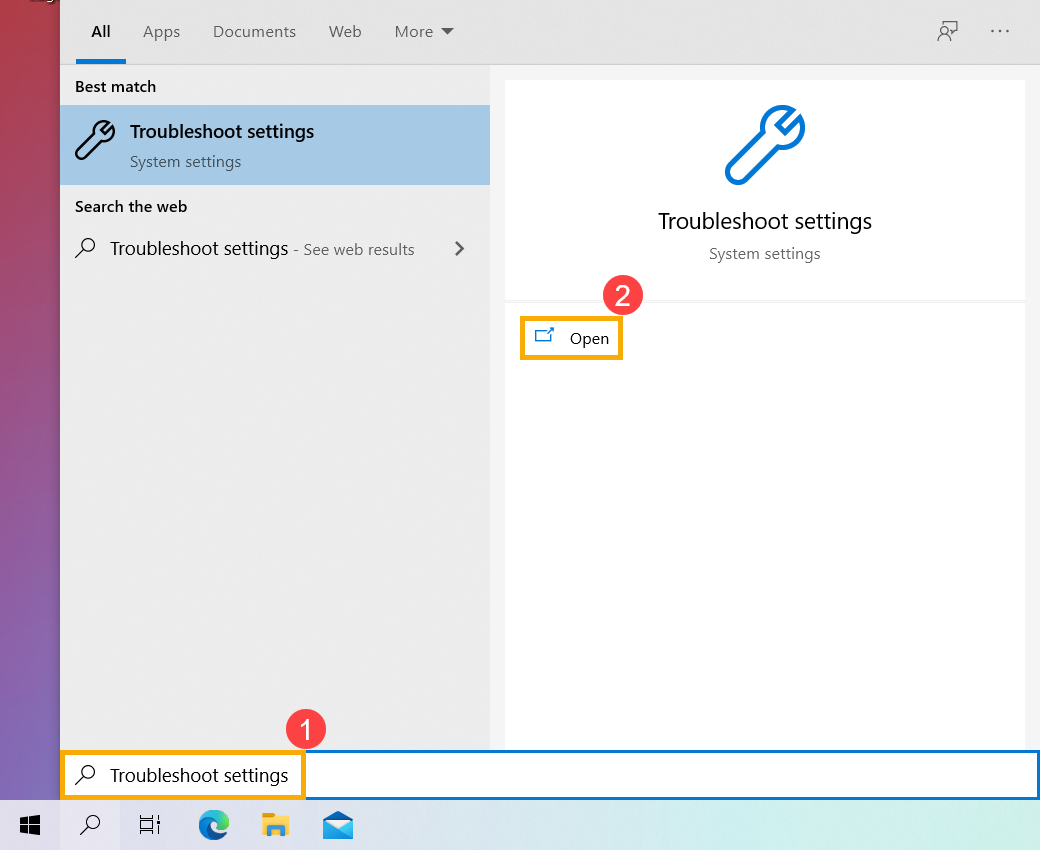
- Type and search [Troubleshoot settings] in the Windows search bar①, then click [Open]②.
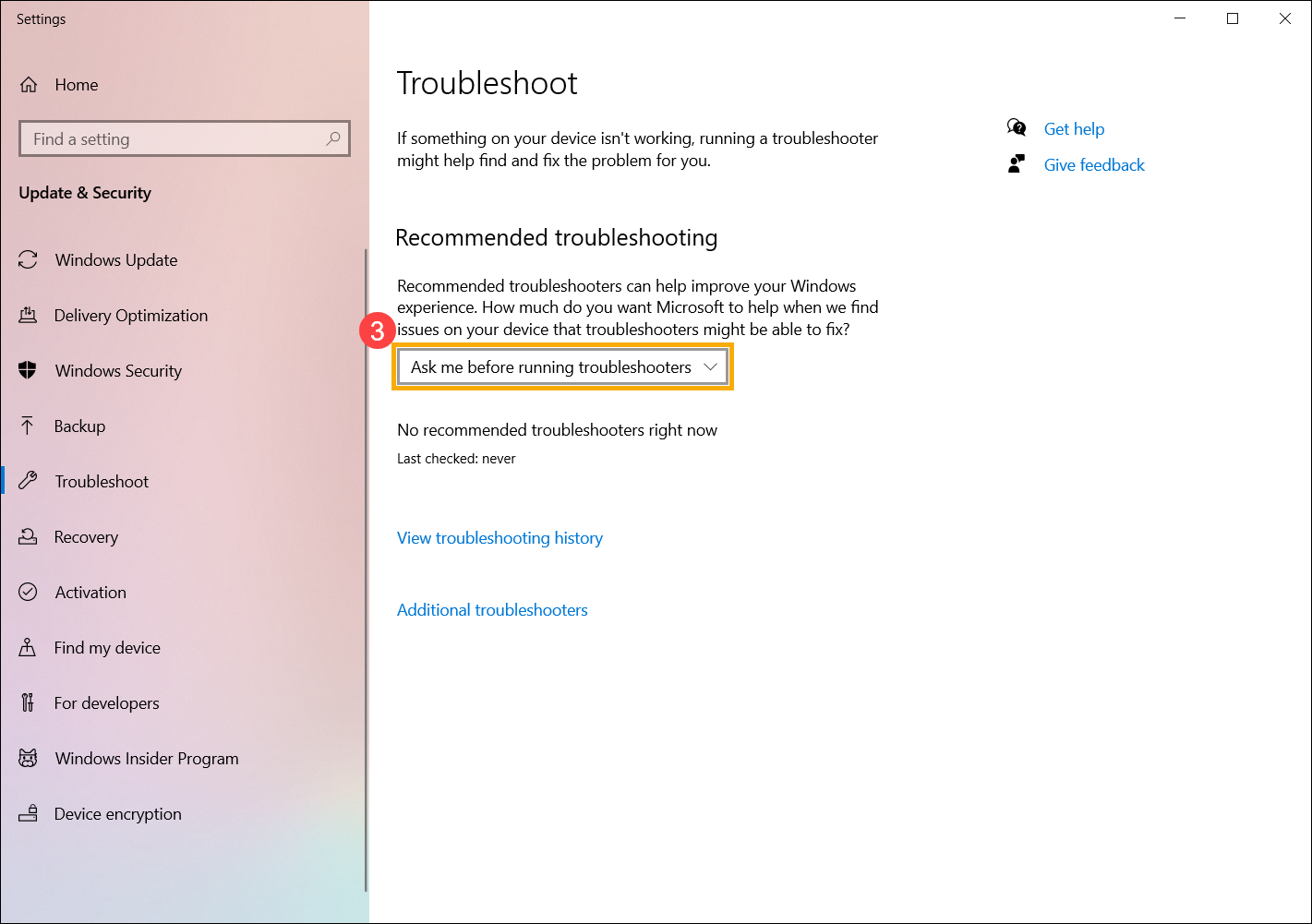
- In Recommended troubleshooting, you can choose how recommended troubleshooting is run on your computer when receiving it③. (Run troubleshooters automatically, don’t notify me / Run troubleshooters automatically, then notify me / Ask me before running troubleshooters / Don’t run any troubleshooters) Recommended troubleshooting will only be enabled when your computer connects to the internet.
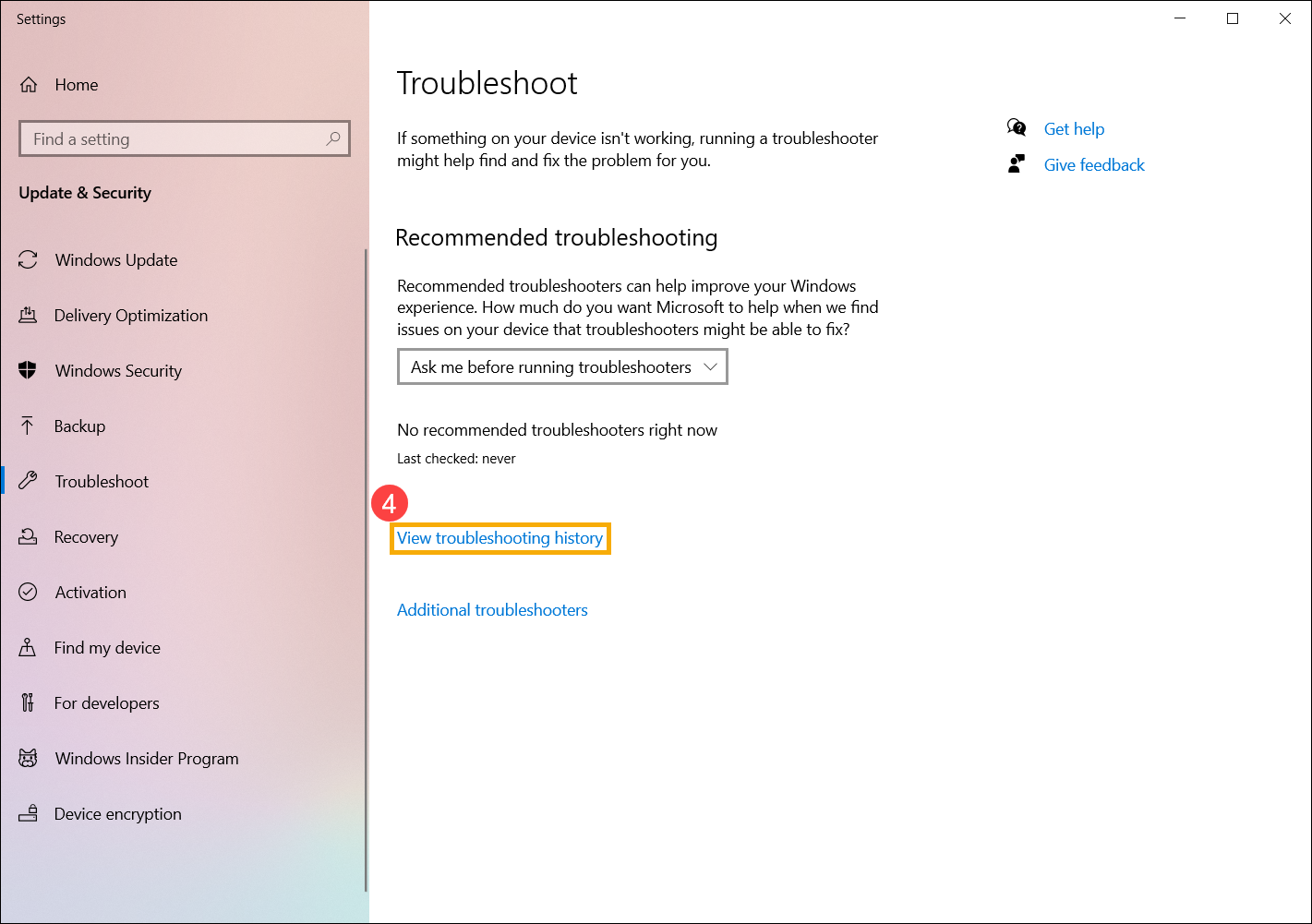
- Windows keeps track of the critical and recommended troubleshooting run on your device so you know what problem they have fixed. You can select [View troubleshooting history] to check④.
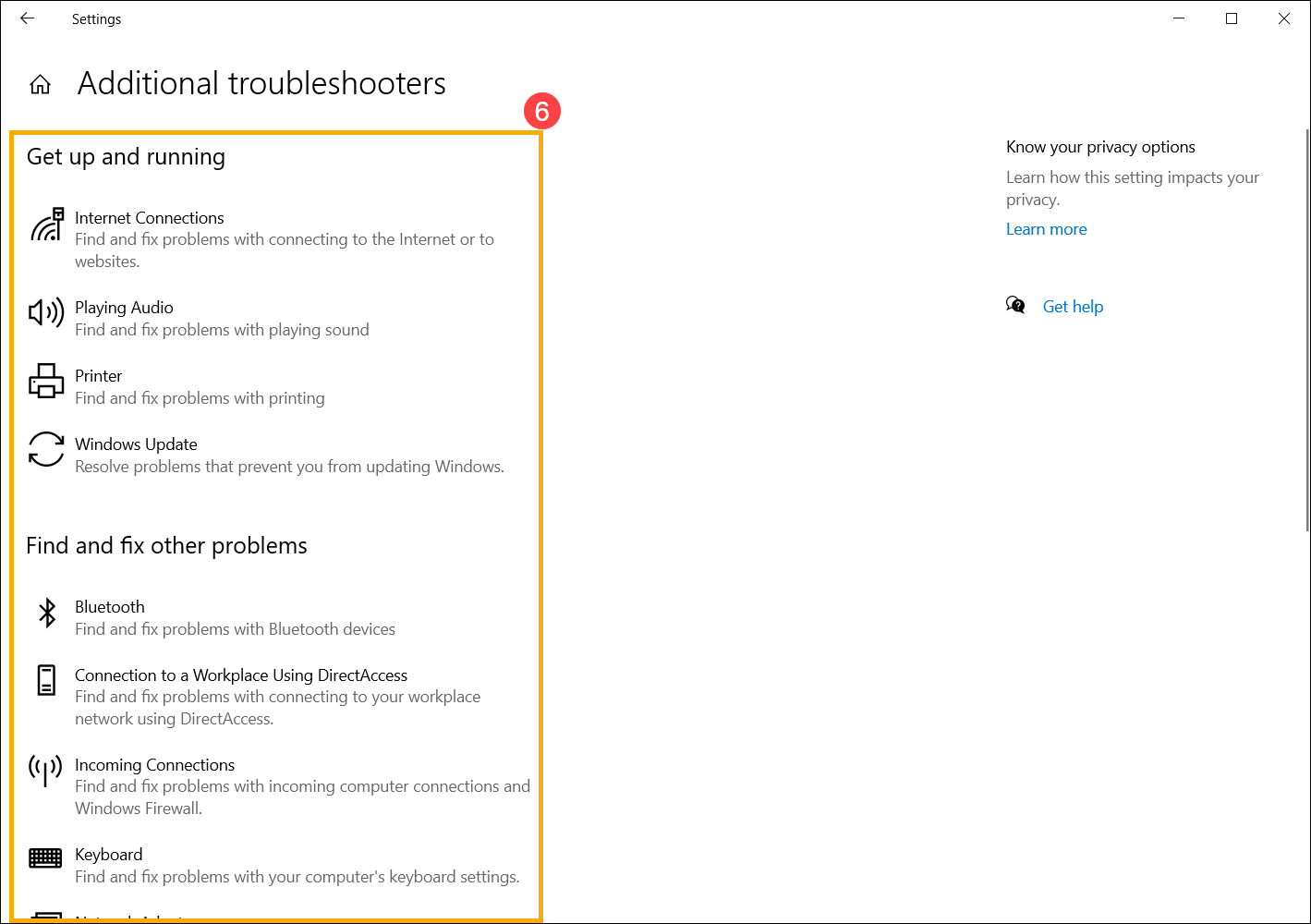
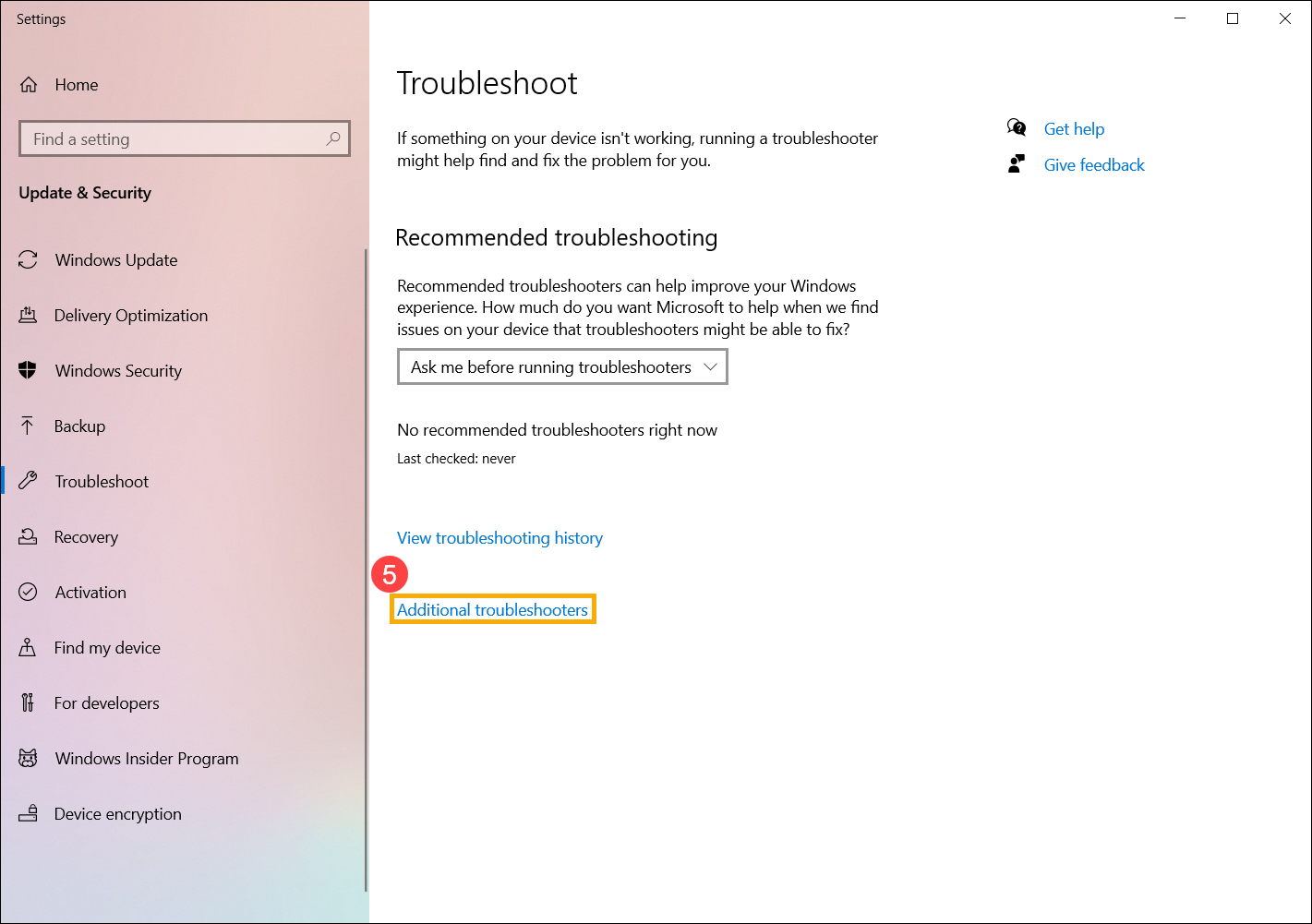
- If there are some items that cannot work normally on your device, you also can manually run the troubleshooter to try to find and fix the problem. Please select [Additional troubleshooters]⑤.
- Select the troubleshooter based on the problem you experience, and then follow the diagnostic suggestions Microsoft provides to fix it⑥.